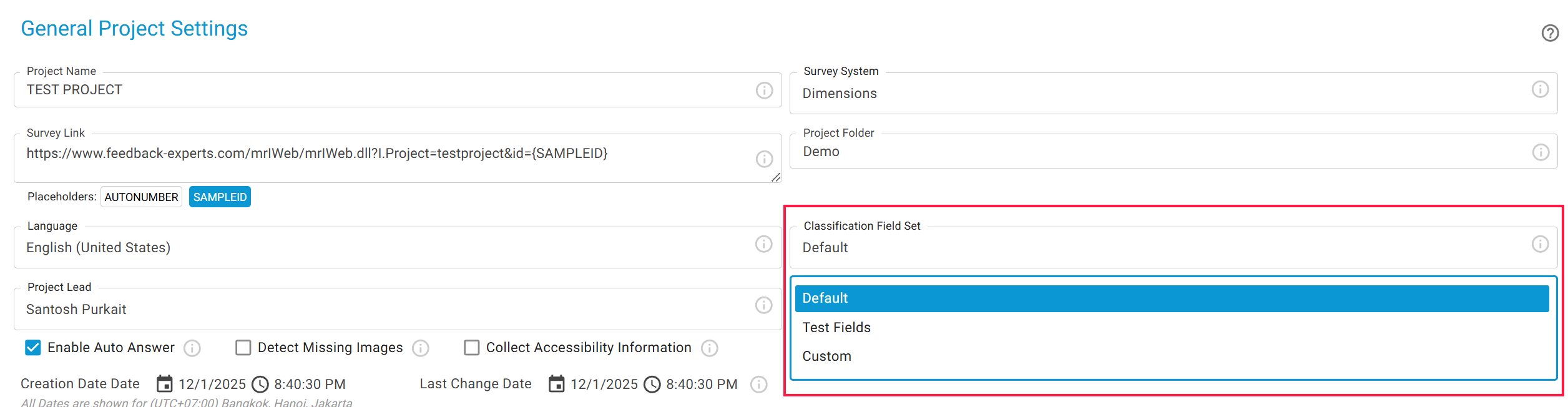
Project types bundle the classification fields of your issues and the settings a project inherits. You control visibility, colors, defaults, and whether values can close issues.
SurveyTester lets testers record issues using Classification Fields—structured details that describe the problem. Since every company, team, or customer may need different fields, SurveyTester groups them into Project Types. When creating a new project, you choose its Project Type. To add a new one, click Add Project Type.
You find the project types under Administration › Project Types. Select a project type to see its tabs:
| Tab | What you set there |
|---|---|
| Classification Fields | The fields and values described on this page. |
| Finding Detection | Which automatic checks run and which classification values a converted finding gets. See Automatic issue detection settings. |
| End Pages | The identifiers of the survey end pages. See Survey end pages. |
| Market and Language Questions | The questions that carry the market and the language. See Market and language questions. |
| Personal Data | Which categories of personal data are reported. |
| Other | Reasons for closing and re-opening issues (details), the warning days before go-live for the test plan and the allowed AI engines. |
🔹 Field Table Columns
-
Field Name: Label shown during testing and issue review.
-
Reporting Name: Name that will be shown in the reports.
-
Field Type: Drop-down, list box, or radio button (interchangeable). Other types are fixed once created.
-
Tester Visibility: Decide who sees the field - External Tester (refers to testers who are outside the company domain and do not have user login) and Internal Testers (refers to testers who are within the organization and have login access to SurveyTester).
-
Overview Handling: Show/edit fields directly in the issue overview table.
-
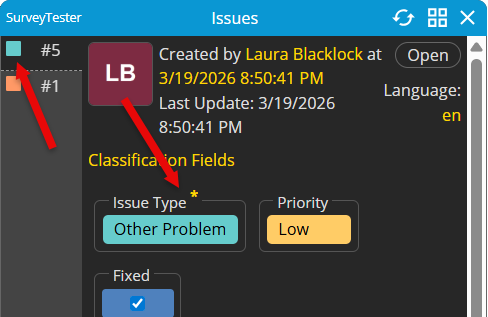
Use as Color Code: Display color codes for issue list during testing (refer to screenshot below).
-
Must Answer: Testers must select a value before saving an issue.
-
Hide in Insights: Hides the selected field to from the Insights tab.

Note
The above screenshot shows an example of Field Table - Issue Type, with the Field Values that will be shown in the list box - Layout error, Logic Error, Translation Error and Other Problem.
🔹 Field Values Columns
-
Name: Label shown during testing and issue review.
-
Reporting Name: Name that will be shown in the reports.
-
Color: Assign a color to the value (helps visualize issues).
-
Close Issue: Mark values that automatically close an issue. (Manual close can be allowed in company settings).
-
Is Default: Pre-select a default value so testers don’t need to fill it in.
-
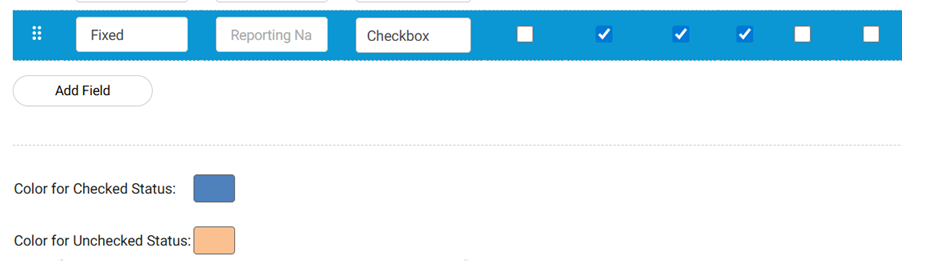
Checkbox Colors: Define colors for Field Type Checkbox.
You can change the Project Type of a project under Project Details › General. However, if this change is made while project testing is already in progress, any data associated with the original project type will be lost.
Note: It is not recommended to change the project type after testing has begun unless there is a strong and necessary reason to do so.